
Blog · August 5, 2026
How to Add Online Booking to Your Website (No Developer Needed)
A step-by-step guide to adding online booking and instant quotes to your service business website. It works on Wix, Squarespace, WordPress, and more, with no code required.
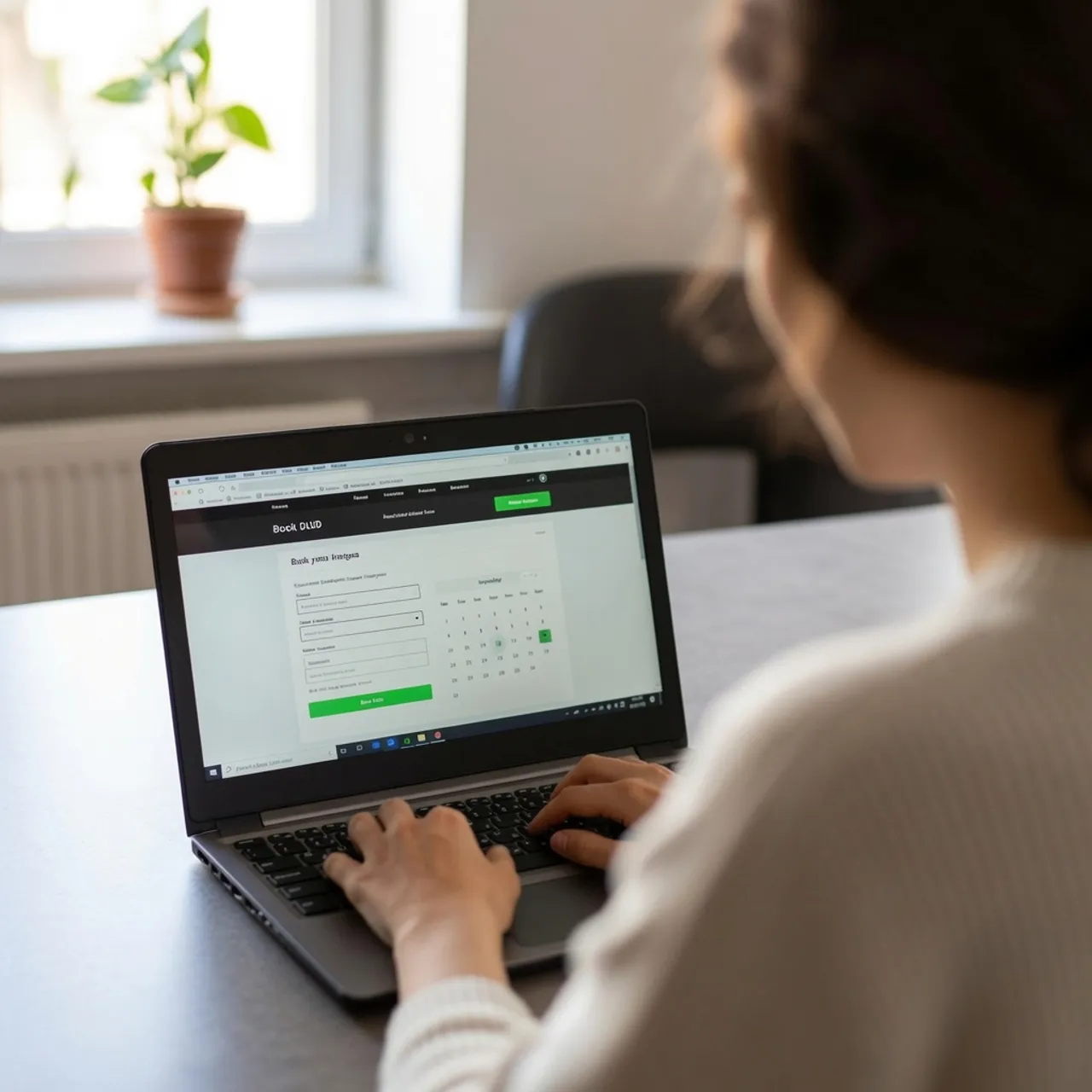
If customers have to call, email, or fill out a form and wait, you’re losing jobs to businesses that let people book on the spot. The good news: adding online booking to your website no longer requires a developer or expensive software. If you can copy and paste, you can do it in about ten minutes. Here’s how.
Step 1: Decide what “booking” should do for your business
Before you add anything, get clear on the outcome you want. For most service businesses it’s one of these:
- Instant quote and booking, where the customer gets a price and reserves a time (best for winning ready-to-hire customers).
- Request a time, where the customer asks for a slot and you confirm.
- Quote request only, for complex jobs you price manually.
The first option converts best, because it answers the customer’s real question (how much, and when?) without a callback.
Step 2: Choose a tool that matches your site
You don’t need to rebuild your website. Look for a booking tool that:
- embeds with a single snippet (works on Wix, Squarespace, Framer, WordPress, or a link-in-bio),
- prices the job for you from a rate card you control,
- takes a deposit or card so bookings actually stick, and
- keeps booking out from behind a $100/month plan built for big crews.
Avoid anything that makes you migrate your whole business or hire someone to set it up.
Step 3: Set up your services and rates
Add the services you offer and how you price each: by size, by the hour, by unit, or a flat rate. This is what lets the tool return an instant price instead of “we’ll get back to you.” Spend the time here to get your rates right; it’s the difference between a quote a customer trusts and one you have to redo.
Step 4: Paste the snippet onto your site
Most modern tools give you one line of HTML to drop into an “embed” or “custom code” block wherever you want the button, usually your homepage and services page. On Wix/Squarespace/Framer/WordPress, that’s an Embed or Code element. Save, publish, done.
Step 5: Test it like a customer
Open your site on your phone, run through a real booking, and confirm you get the notification and the schedule entry. Check the confirmation email and, if you take payment, that the deposit lands in your account.
Step 6: Point people to it
Add the booking button to your Google Business Profile, your Instagram/Facebook link-in-bio, and your email signature. The more places a ready customer can hit “book,” the more jobs you capture.
A note on payments
You don’t have to become a payments expert. Tools that use Stripe let customers pay you directly, with the money going straight to your bank after you connect your account once. And if you’d rather not take online payments yet, pick a tool that can capture bookings without them.
Adding online booking is the highest-leverage hour you’ll spend on your website this year: it turns a brochure into something that actually books jobs while you work.
Sorvius is a drop-in instant-quote and booking button for service businesses. Paste one line and go live in minutes, on any site. Start a 14-day free trial →